
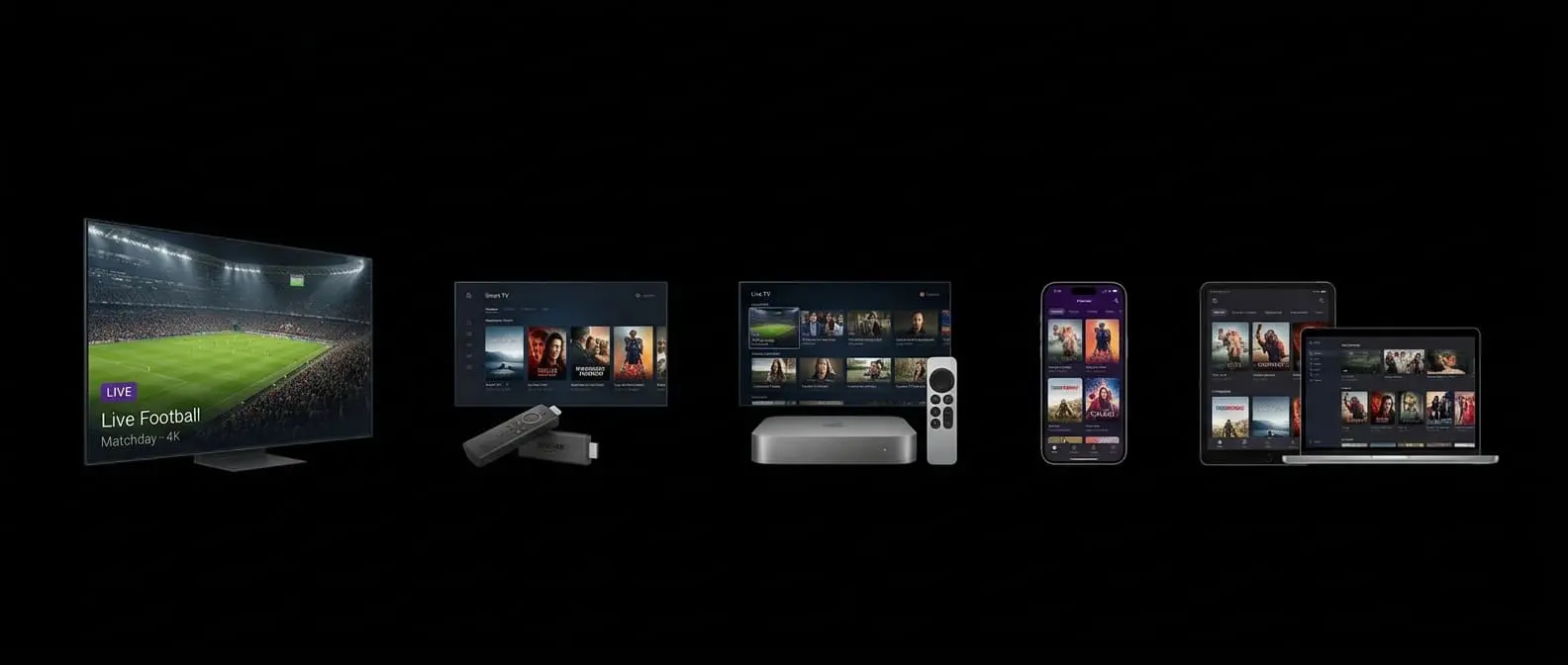
Computers are often overlooked for IPTV, but they're ideal for a study, a student room or watching a second match while the main TV is busy. You have two routes: open your playlist in VLC for quick viewing, or install a dedicated IPTV player for a full programme guide. Our round-up of the best IPTV players shows which ones run on a desktop.
Option 1: VLC (quick and free)
VLC is a free media player for Windows and Mac that can open an M3U playlist in seconds.
- Download VLC from the official VideoLAN website and install it.
- Open VLC and choose Media → Open Network Stream (on Mac: File → Open Network).
- Paste your ProTVHub M3U link and press Play.
- Open the playlist view (View → Playlist) to browse and search channels.
VLC doesn't show a TV guide, and very large playlists can take a moment to load, so it's best for testing your line or occasional viewing.
Option 2: a dedicated desktop player
For regular viewing, a proper IPTV player gives you a guide, favourites and separate film and series sections.
- IPTV Smarters offers a desktop version for Windows and macOS and uses the same Xtream login as on your TV.
- Several other desktop players support Xtream codes and M3U playlists; check each developer's official site and recent reviews before installing.
To add ProTVHub:
- Install the player from the developer's official website.
- Choose the Xtream codes login option.
- Enter your server URL, username and password.
- Wait for channels, films and the guide to load.
Not sure which details go where? See what’s in your IPTV login.
Getting a stable stream on a computer
- Plug in an Ethernet cable if your laptop has a port or adapter.
- Close heavy browser tabs and downloads — cloud syncing and game updates compete for bandwidth.
- Keep your graphics drivers up to date on Windows for smoother high-resolution playback.
- Mirror to a TV with HDMI if you want a bigger screen: plug the laptop into the TV and set the display to duplicate.
Troubleshooting
VLC says it can't open the stream — make sure you copied the entire M3U link without spaces at the end.
Audio and video drift out of sync — try a dedicated player instead of VLC, or restart playback.
Stutter on older laptops — choose HD channels rather than 4K and close other applications. Our buffering guide covers the network side.